Excel
June 09, 2026
Custom Excel Data Entry Forms
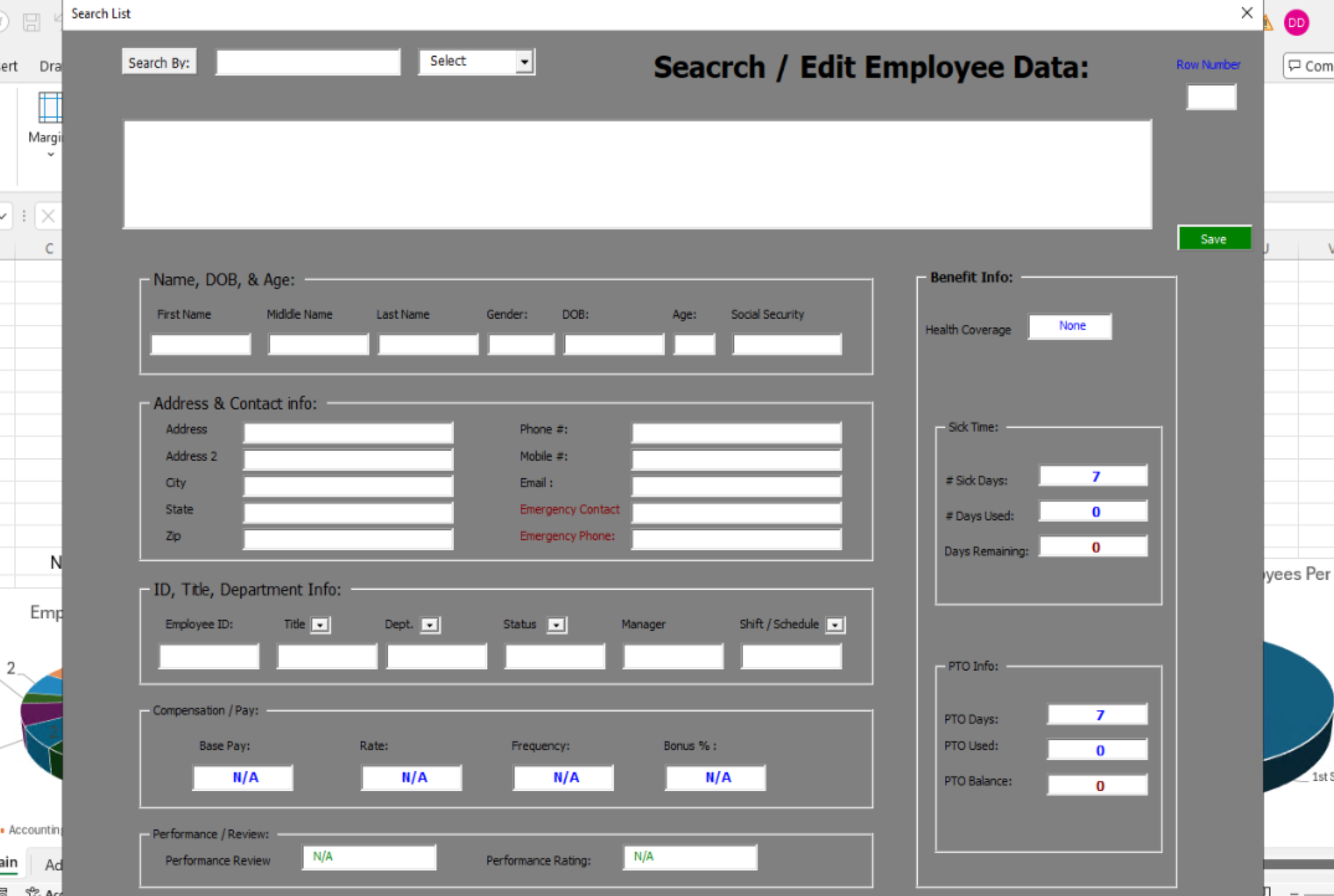
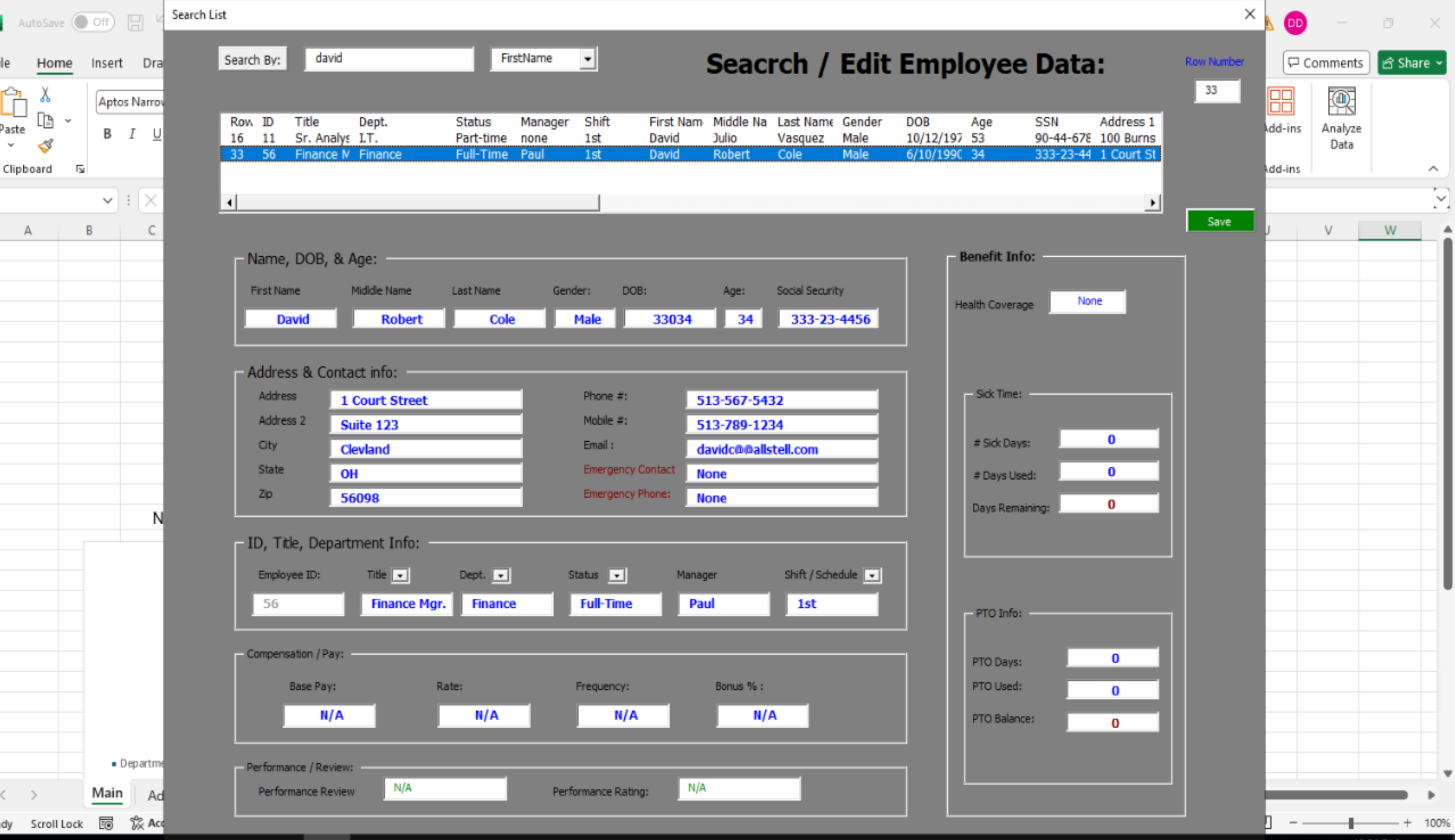
- Build Your Own
Tired of mundane Data entry…, want to look like a pro to your Boss and Co-Workers
Learn How to make Custom Excel Data Entry Forms
To build a professional, automated Excel data entry form, choose the native Excel Form tool for a quick setup, or build a custom UserForm via VBA for advanced layouts and input controls (like drop-downs and checkboxes). [1, 2, 3, 4]
- Method 1: The Fast, Built-in Excel Form (No VBA Required)
- If your goal is to quickly create a form based on your existing column headers, you can use Excel's hidden data entry tool
 GeeksforGeeks.
 - Add Your Headers: Type your column headers (e.g., Name, ID, Department) in row 1 of your sheet
 The ClickUp Blog.
 |  |
- Convert to Table: Select your headers, press \(\text{Ctrl} + \text{T}\), and check "My table has headers" The ClickUp Blog. [1, 2]
- Add the Form Tool: Right-click the ribbon and select Customize the Ribbon. In the "Choose commands from" drop-down, select All Commands, scroll down to Form..., click Add, then click
- OK The ClickUp Blog.
- Launch the Form: Click any cell in your table and click the new Form icon to open a pop-up window that lets you add, edit, and navigate records The ClickUp Blog.
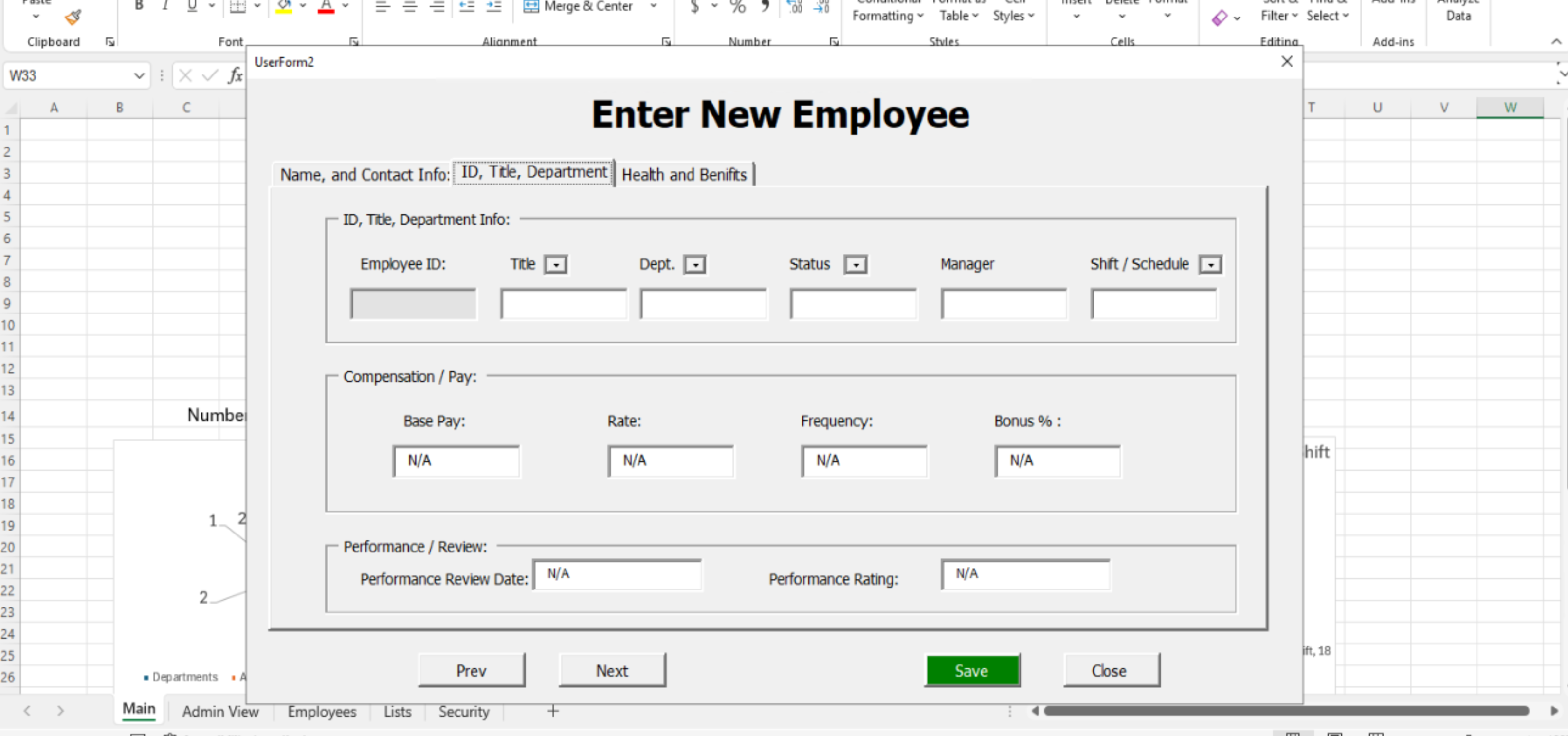
Method 2: Create a Custom UserForm via VBA (For a Pro Look)
For a fully customized, professional data entry experience, you can use Visual Basic for Applications (VBA)  Automated Data Entry Form in Excel | VBA Tutorial. [1, 2]
- Enable Developer Tab: Go to File > Options > Customize Ribbon, check the Developer box, and click OK
 Creating Excel Data Entry Forms - Step by Step Tutorial. [1, 2, 3]
 - Launch the VBA Editor: Press \(\text{Alt} + \text{F11}\) to open the Visual Basic editor
 Fully Automated Data Entry UserForm in Excel using VBA: A .... [1, 2]
 - Insert a UserForm: Click Insert > UserForm
 Userform in Excel VBA (Easy Steps).
 - Design the Form: Use the Toolbox to drag labels, text boxes, and a "Submit" command button onto your form. Click the Properties Window to rename your controls (e.g., changing TextBox1 to txtName) so you can identify them later Userform in Excel VBA (Easy Steps).
- Write the Code: Double-click the "Submit" command button and add VBA code to transfer data from your form fields into the corresponding columns in your spreadsheet Userform in Excel VBA (Easy Steps).
- Save as Macro-Enabled: Always save your work as an Excel Macro-Enabled Workbook (.xlsm) to retain your form and code Automated Data Entry Form in Excel | VBA Tutorial. [1, 2]